
A prospect asks to see your product live. You open the demo environment, click the screen-sharing button, and pause when the browser asks whether you want to share a tab, a window, or your entire desktop. Meanwhile, a notification appears in the corner of your screen, your private notes are open beside the presentation, and the prospect is waiting.
Screen sharing can rescue that moment by putting the right visual context in front of a buyer or support customer immediately. It can also create awkward delays, blurry visuals, audio confusion, or accidental exposure when the person sharing doesn’t understand what the browser is doing.
So, how does screen sharing work in a browser? The short answer is that the browser captures a surface you choose, turns changing pixels into a real-time media stream, sends that stream across a connection, and reconstructs it for the viewer. The important detail is the permission boundary around that process. A browser tab, application window, and entire desktop carry different privacy risks and offer different kinds of control.
By the end, you’ll understand the capture pipeline, why latency and quality vary, what the permission picker protects, when co-browsing is a better fit, and how sales and support teams can choose a sharing method without adding unnecessary friction.
Table of Contents
- Introduction Why Screen Sharing Feels Like Magic Until It Fails
- How Browser Based Screen Sharing Actually Works
- Inside the Capture to Render Pipeline That Powers Every Share
- Permissions Privacy and What You Are Really Exposing
- Screen Sharing vs Co Browsing and When to Use Each
- Practical Use Cases for Sales Demos and Support Teams
- Choosing Secure Browser Sharing and Next Steps
Introduction Why Screen Sharing Feels Like Magic Until It Fails
A live demo often starts with a simple request: “Can you show me how that works?” The salesperson wants to move from talking about the product to showing it. A screen share makes that transition feel immediate. The buyer sees the interface, the rep points to a workflow, and both people can discuss the same visual object instead of relying on descriptions.
That smoothness hides several technical decisions. The browser must identify a surface it’s allowed to capture, ask the user to approve it, collect visual updates, compress them, send them through a real-time channel, and display the result on another device. If any stage slows down, the experience changes. The viewer may see a frozen frame, delayed cursor movement, unreadable text, or a black screen.
The confusion usually starts with the phrase “share your screen.” It sounds like one action, but it can mean at least three different choices:
- Share a browser tab, which limits the view to one tab.
- Share an application window, which can include everything visible inside that window.
- Share the entire desktop, which may reveal other windows, notifications, and unrelated activity.
The browser’s permission prompt is therefore part of the product experience, not an annoying interruption. It helps the person sharing decide what the viewer can see before the stream begins.
Practical rule: Choose the smallest surface that lets you complete the task. A product tab is usually safer for a walkthrough, while a full desktop may be necessary for troubleshooting.
The rest of the process becomes easier once you separate what gets captured, how the stream travels, and what the viewer receives. That distinction also helps GTM teams decide when ordinary screen sharing is appropriate and when co-browsing can provide a narrower, lower-friction way to guide someone.
How Browser Based Screen Sharing Actually Works
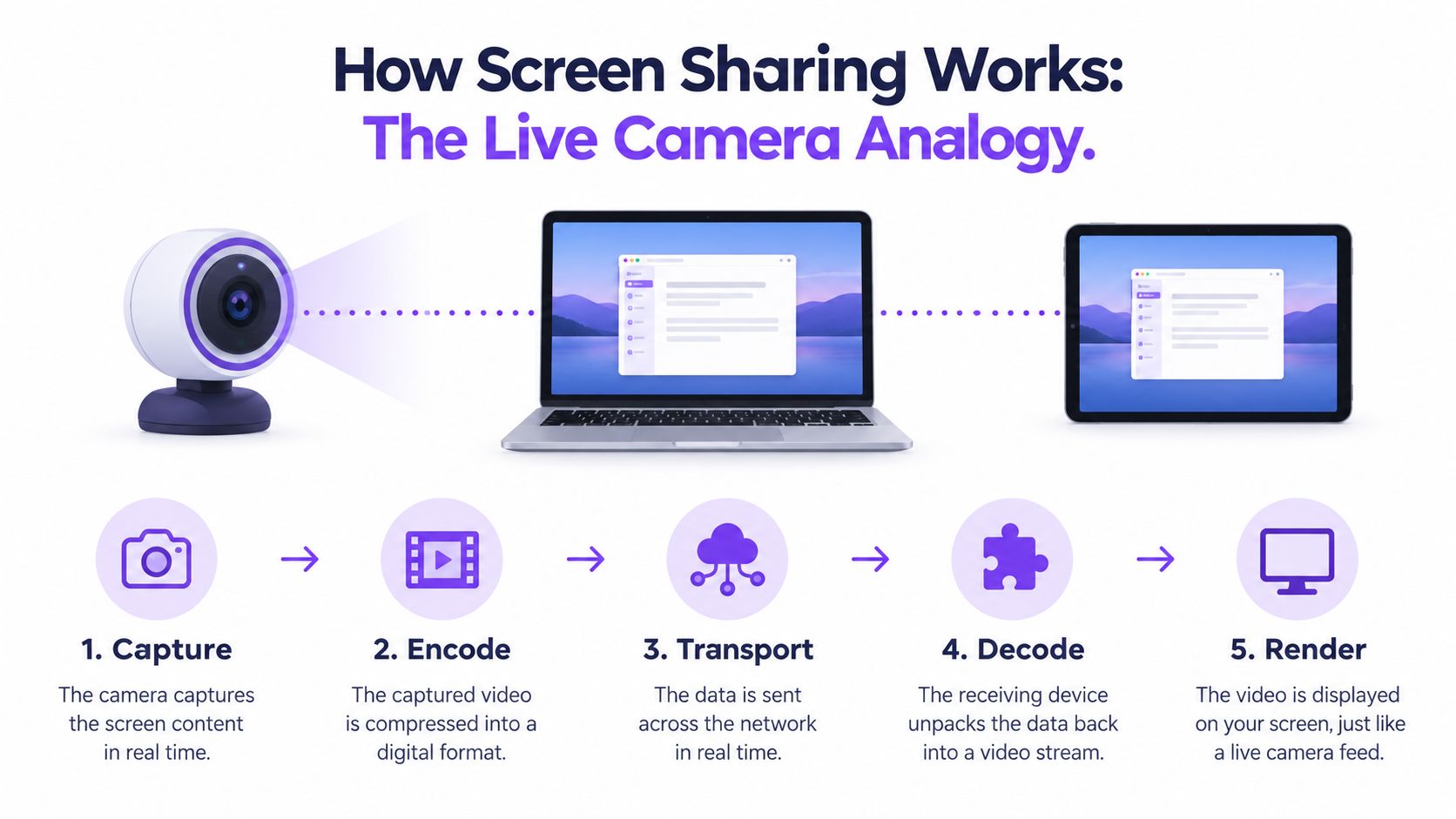
Think of browser screen sharing as a live camera pointed at a selected part of your display. The browser isn’t sending the underlying files, browser history, or application data to the viewer. It captures the visible surface, creates a stream from changing images, and delivers those updates through a real-time connection.
The process can be pictured as five stages:
- Capture: The browser records the chosen tab, window, or desktop surface.
- Encode: It compresses the visual updates into a format suitable for transmission.
- Transport: It sends the stream through a real-time media connection.
- Decode: The receiving browser or application converts the stream back into viewable frames.
- Render: The viewer’s device displays those frames on screen.
Why the browser doesn’t need to send a file
A document upload transfers a mostly complete object. Screen sharing has a different job. It needs to communicate ongoing visual changes, such as a cursor moving, a menu opening, or a new page appearing. Real-time media protocols are better suited to this pattern than full-file transfer because they prioritize continuous updates and responsiveness.
Modern browser sharing commonly relies on WebRTC, which brought browser-native, low-latency real-time communication to the web in the 2010s. Its technical roots reach much further back. The X Window System first released in 1984, VNC appeared in the 1990s, and RDP followed in the 2000s. Consumer sharing also became familiar through Apple’s progression from AirTunes in 2004 to AirPlay in 2010, iOS mirroring in 2011, and AirPlay 2 in 2018, as documented in the history of AirPlay.
The modern browser hides most of that machinery behind a familiar button. A person picks a surface, grants permission, and the application negotiates the connection in the background. For teams that need deeper context on remote assistance, a practical remote desktop support guide can help distinguish viewing a screen from remotely operating a device.
The result feels instant because the system sends a continuing sequence of visual updates rather than waiting for a complete recording or file to finish. It still isn’t instantaneous. Capture timing, compression, network conditions, and playback buffering can all introduce delay.
Inside the Capture to Render Pipeline That Powers Every Share
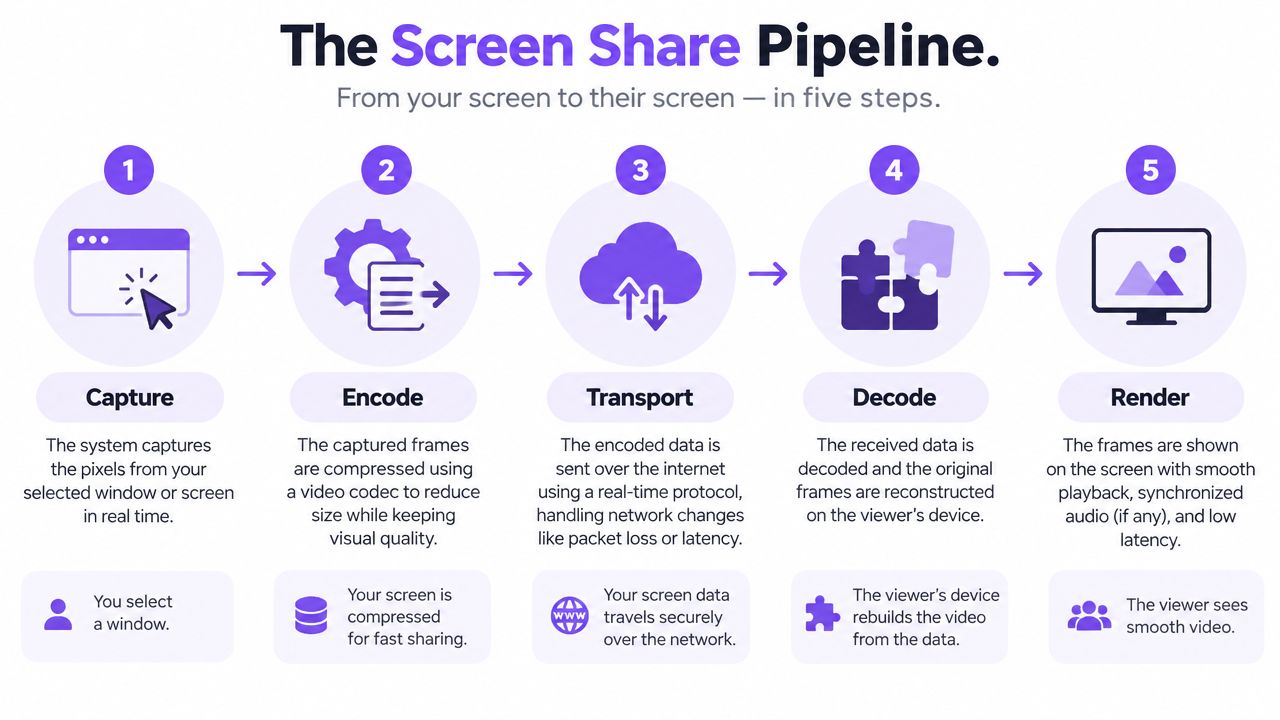
The simple five-stage model becomes more useful when you connect each stage to a symptom a user can recognize. Screen sharing is commonly implemented as a capture, encode, transport, decode, render pipeline across both native and clientless systems. The pipeline described in technical research on screen-sharing architecture begins with the display framebuffer and ends with reconstructed frames on the viewer’s device.
What each stage contributes
Capture reads the selected visual surface. If the capture process samples updates slowly, the viewer may see motion as choppy even when the network is healthy.
Encoding compresses frames into video bitstreams. Compression reduces the amount of data to send, but the encoder needs processing time. Stronger compression can preserve bandwidth while increasing complexity or delay.
Transport packetizes the encoded stream and sends it over a real-time media channel. Network jitter, congestion, and packet loss can interrupt the flow or force the system to adjust quality.
Decoding reconstructs the frames on the viewer’s device. A device under load may decode slowly, which can produce stuttering even when the sender has a stable connection.
Rendering places the decoded frames on the viewer’s display. Buffering can smooth irregular delivery, but extra buffering also means the viewer sees the presenter later.
Latency isn’t caused by screen resolution alone. Capture rate, encoder delay, network jitter, and decoder buffering can matter just as much.
The quality tradeoff
Comparative testing found that WebRTC handled difficult network conditions with under 3 Mbps of bandwidth, more than 27 dB PSNR, and a decoding ratio above 86%, while showing roughly 120 milliseconds more latency than some alternatives. These figures come from the comparative screen-sharing technology research, and they illustrate a tradeoff rather than a universal promise.
A team troubleshooting a poor demo should therefore ask where the problem appears:
- If the picture is blurry, compression or available bandwidth may be limiting detail.
- If movement is jerky, capture rate, packet delivery, or decoding may be involved.
- If the viewer reacts noticeably late, encoder delay or buffering may be adding latency.
- If audio is confusing, check whether the selected surface and browser support the required audio capture behavior. For a focused explanation of an often-overlooked issue, see this audio guide for screen recordings.
The practical lesson is simple. A good share isn’t just a high-resolution image. It balances clarity, bandwidth, processing time, and responsiveness for the task at hand. A static product walkthrough can tolerate more compression than a live troubleshooting session where the viewer needs to react to cursor movement immediately.
Permissions Privacy and What You Are Really Exposing
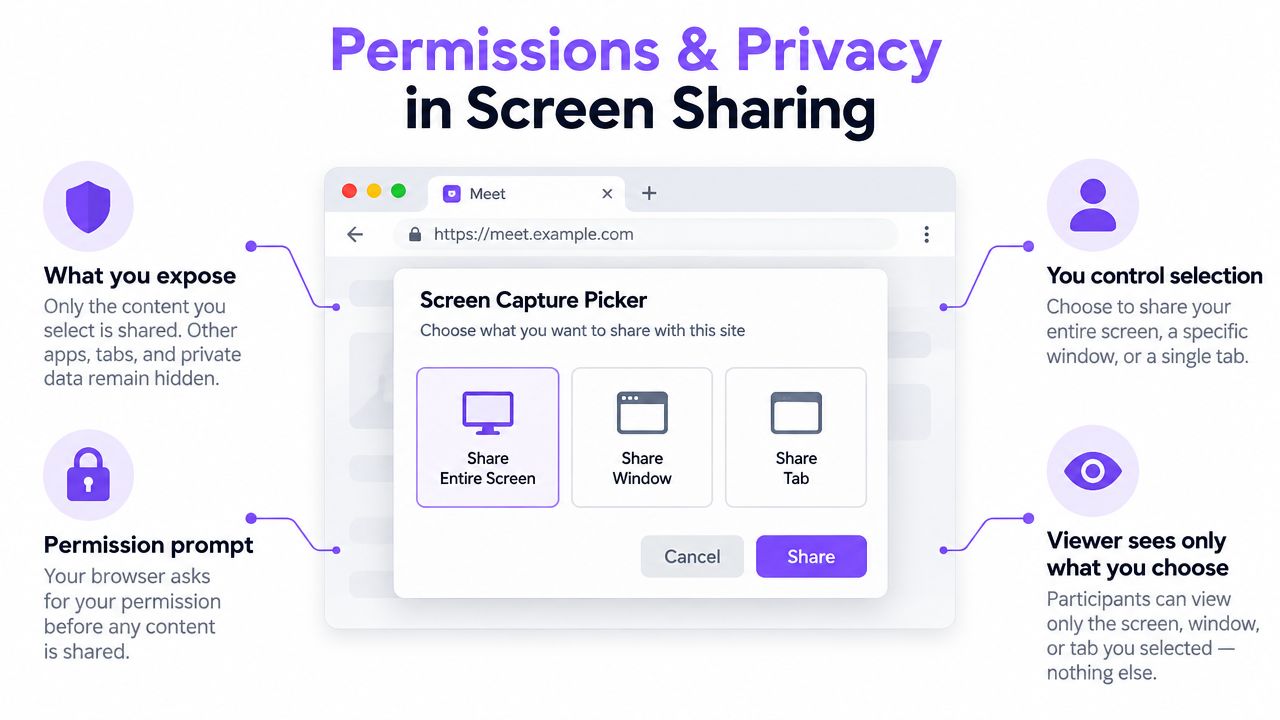
The browser’s share button doesn’t give an application unlimited access to your computer. Modern browser sharing is permission-gated through the Screen Capture API’s getDisplayMedia(). The browser opens a user picker, and the person sharing selects the surface that the application may capture. Browsers deliberately prevent silent capture because a website shouldn’t be able to observe a user’s display without a visible choice.
That protection doesn’t remove the need for judgment. It changes the question from “Does screen sharing work?” to “Which surface should I authorize, and what could appear on it during the call?”
Three surfaces with different risk profiles
A browser tab offers the narrowest visual boundary. It’s useful for showing a web product, documentation, pricing page, or interactive prototype. The viewer generally sees activity within that selected tab, although teams should still confirm how tab audio and browser behavior work in their chosen environment.
An application window is broader. It can be the right choice for demonstrating a desktop application, terminal, design tool, or support workflow. The risk is that anything visible within that window, including sensitive records or private messages, becomes part of the share.
The entire desktop provides maximum flexibility and maximum exposure. It may be required when someone needs to move between applications, reproduce a system problem, or show an operating-system setting. It can also reveal notifications, unrelated windows, browser tabs, and confidential information without the presenter noticing.
Audio has its own boundaries. Depending on the browser, operating system, and selected surface, the presenter may be able to include tab or system audio, or may be limited to the visual stream. Teams should test audio separately rather than assuming that a visible share automatically carries sound.
A safer pre-share routine
Before a demo, close unrelated windows, pause notifications, and open the exact surface you intend to select. During support, ask the customer to remove passwords, personal records, and private conversations from view before sharing. Organizations that need to document their controls can also review Captiwate’s security information as part of a broader vendor assessment.
The viewer sees what the selected surface exposes, not what the presenter intended to expose. Selecting a tab instead of the desktop is therefore a privacy decision, not just a technical preference.
Screen Sharing vs Co Browsing and When to Use Each
Screen sharing and co-browsing solve related problems, but they don’t create the same experience. Screen sharing broadcasts visual output from the presenter’s device. Co-browsing lets a representative and a customer work through a browser-based experience together, often with a narrower page-level scope and optional customer-approved control.
| Capability | Full Screen Sharing | Co Browsing |
|---|---|---|
| What is shared | A selected tab, application window, or entire desktop | A browser-based page or guided web experience |
| Download requirements | Usually browser-native for web meetings, though a service may require an app | Designed for an in-browser experience |
| Control | The presenter controls their own screen unless another permission is granted | The customer and representative can coordinate navigation, with control depending on consent and tool design |
| Privacy boundary | Can extend from one tab to the whole desktop | Usually narrower because the interaction centers on the web page |
| Best fit | Desktop troubleshooting, software demonstrations, and showing activity across applications | Product walkthroughs, onboarding, support guidance, and sales conversations on a website |
Choose based on intent
Use full screen sharing when the customer needs to see something outside the browser. A support engineer diagnosing a desktop application, checking an operating-system setting, or reproducing a local issue may need the application window or full desktop.
Use co-browsing when the job is to help someone complete a web workflow. A sales representative can guide a prospect through product pages, configuration steps, or an account experience without asking the prospect to expose unrelated desktop content. The narrower context can reduce both setup friction and accidental visibility.
For teams evaluating an in-browser experience, Captiwate’s co-browsing product provides a concrete example of how guided navigation can sit alongside live customer engagement.
A useful decision test is: Does the customer need to show their computer, or do both people need to work through the same web experience? The first points toward screen sharing. The second often points toward co-browsing.
Neither approach is automatically safer in every situation. Co-browsing still needs clear consent and careful handling of sensitive pages. Screen sharing remains valuable when visual context beyond a web page is essential. The right choice follows the smallest scope that supports the customer’s goal.
Practical Use Cases for Sales Demos and Support Teams
A visitor lands on a pricing page and has a detailed question. In a traditional workflow, the visitor fills out a form, waits for a response, and schedules a conversation later. In an in-browser engagement workflow, a sales representative can invite the visitor into a live conversation while the product context is still visible.
Screen sharing helps when the rep needs to demonstrate a feature, review a proposal, or show a workflow from the rep’s own environment. Co-browsing can be lighter when both participants need to traverse a website together. The distinction matters because the fastest interaction isn’t always the one with the broadest screen access.
Sales demonstrations
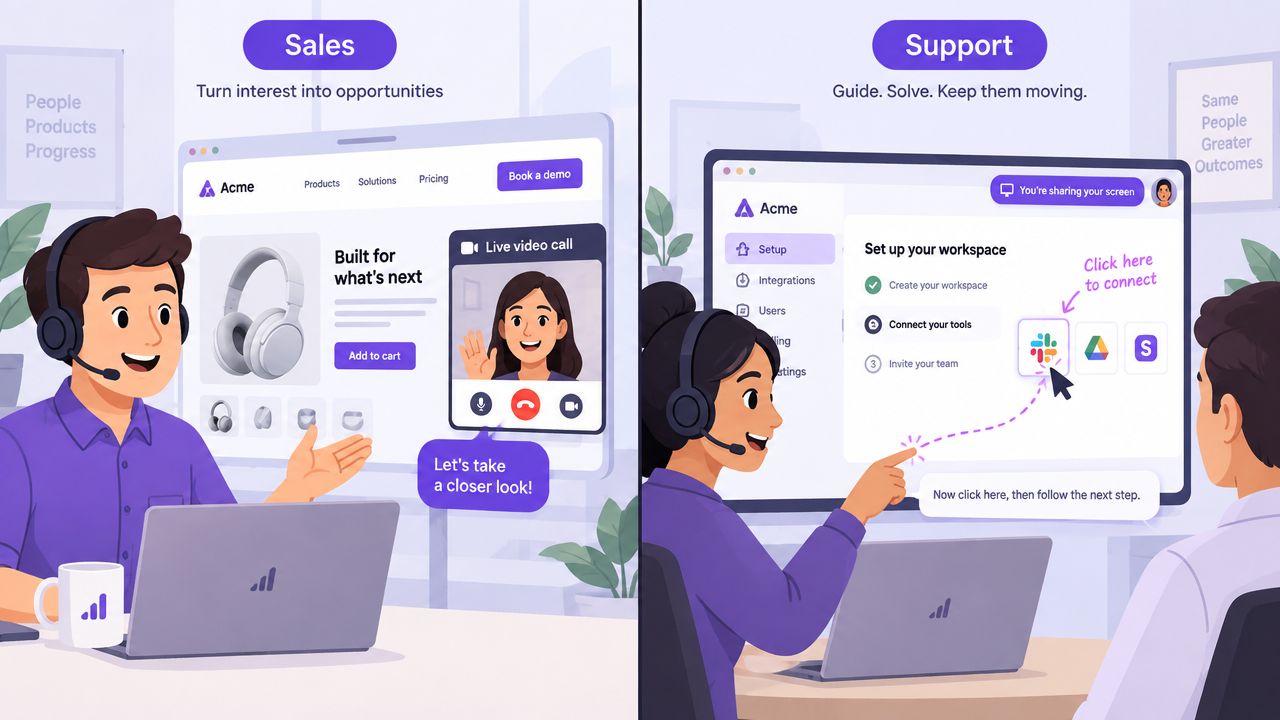
A rep can open the relevant product area before inviting the prospect to a call, then share only the necessary tab or window. That keeps the conversation focused and avoids turning a simple walkthrough into a tour of the rep’s desktop.
For a team examining a specific sales workflow, the Salesforge demo-volume case study offers a relevant example to review. The broader operating principle is portable: connect the live conversation to the page where buying intent appears, then choose the narrowest visual method that answers the prospect’s question.
This approach also helps sales and marketing teams hand context to one another. A visitor’s page activity, conversation, qualification details, and meeting outcome can remain connected when the engagement tool integrates with the team’s CRM and collaboration workflow.
After a prospect moves from a question to a hands-on walkthrough, the rep may use co-browsing to guide the prospect through the web product, then switch to screen sharing only when the prospect needs to see something outside that shared page.
That sequence keeps the interaction proportional to the task. The buyer receives help without first navigating a complicated download or exposing an entire desktop.
Support and customer success
Support agents face a different problem. They may need to see the exact failure state, reproduce a workflow, or help a customer find a setting. Screen sharing can reveal the context an agent can’t infer from a written ticket, while co-browsing can keep a web-only issue inside the relevant page.
Agents should explain what they need before asking the customer to share. “Please select this browser tab” is safer and clearer than “share your screen.” If the issue involves a desktop application, the agent can explain why an application-window share is necessary and remind the customer to close unrelated content first.
Choosing Secure Browser Sharing and Next Steps
A dependable browser-sharing experience rests on three questions:
- What surface is being captured?
- How does the stream move and render?
- What permission and security controls surround the session?
The first protects privacy. The second explains latency and image quality. The third determines whether the workflow is appropriate for a customer, employee, or enterprise environment.
A practical evaluation checklist
- Test browser coverage: Validate the experience in Chrome, Edge, Firefox, and Safari. Browser support isn’t uniform, and Safari can be more constrained than the other major browsers.
- Confirm consent behavior: Make sure the user sees a clear picker and can choose a tab, window, or desktop surface deliberately.
- Limit exposure: Prefer tab or window sharing when full-desktop access isn’t necessary.
- Review authentication: Treat any system that enables remote viewing or control as a security-sensitive service.
- Patch promptly: A critical macOS Screen Sharing flaw, CVE-2026-65400, enabled pre-authentication remote code execution, was patched by Apple in August 2026, and was confirmed as actively exploited within days, according to the Cloud Security Alliance research note.
- Avoid public exposure: Don’t expose remote-sharing services directly to the public internet without a carefully reviewed security design.
- Align governance: Check privacy settings, data handling, access controls, and requirements such as SOC 2 and GDPR or CCPA alignment.
Teams creating supporting media can use a studio-quality video maker for demonstrations, but recorded content shouldn’t replace a permission-aware live workflow when the customer needs interactive guidance.
For GTM teams, the next step is practical. Test one sales walkthrough with tab sharing, one support scenario with window sharing, and one web-only journey with co-browsing. Document what the customer sees, what permissions appear, how audio behaves, and where the handoff data lands.
Captiwate combines in-browser video, chat, co-browsing, and screen sharing so sales and support teams can guide visitors without making every interaction start with a form or download. Visit Captiwate to evaluate how permission-aware browser engagement could fit your live demo, qualification, and customer guidance workflows.