A rep books a promising meeting in Outlook, the invitation lands on the buyer’s calendar, and then the record goes quiet. The CRM shows an incomplete account history, the manager can’t see the latest commitment, and another rep may follow up without knowing a conversation already happened. The problem isn’t that Outlook failed. The problem is that nobody decided which system owns the data, what should synchronize, or who can see it.
That’s why CRM integration with Outlook should be treated as a data-governance project, not an add-in installation. Outlook became a foundational business workspace by combining email, calendars, contacts, and tasks with Exchange connectivity. Its history as an integrated productivity environment explains why effective CRM connections depend on identity, mailbox permissions, calendar APIs, and clear ownership rules.
Table of Contents
- Understanding True Synchronization Versus Basic Logging
- Preparing Your Environment and Authentication
- Designing Sync Rules and Conflict Resolution
- Establishing Data Governance and Privacy Controls
- Testing and Validating the Integration
- Connecting Synced Data to Sales Engagement
Understanding True Synchronization Versus Basic Logging
A rep logs one email from Outlook, sees it attached to a CRM contact, and assumes the account history is complete. That record may still exclude the buyer’s reply, a rescheduled meeting, an attendee change, or the reminder created for follow-up. Manual capture records a selected event. Synchronization applies defined rules across related objects and keeps later changes visible.
The distinction affects handoffs and forecasting. Outlook remains the working surface for email, calendars, contacts, and tasks, while the CRM is usually expected to provide shared account context. If updates stay in one mailbox, another rep may act on stale information or duplicate work. Treat the integration as a system-of-record design decision, not just an Outlook add-in.
Adoption figures vary because vendors and teams use “integration” to describe different capabilities, from a plug-in that logs messages to full two-way synchronization. The label therefore says little about operational coverage. Evaluate which objects move, in which direction, under whose ownership, and what happens when records conflict.
Four levels of Outlook connectivity
| Integration type | What it does | Main limitation |
|---|---|---|
| Manual logging | A user selects emails or events for capture | Depends on consistent rep behavior |
| One-way email capture | Messages flow from Outlook into CRM records | CRM changes may not reach Outlook |
| Calendar synchronization | Meetings and reminders appear across systems | Behavior depends on direction and object rules |
| Bidirectional synchronization | Both systems exchange defined updates | Requires conflict and deletion policies |
A useful review tests more than email capture. Confirm whether the connector can create contacts automatically, match messages to existing records, update meetings after rescheduling, record cancellations, and preserve attachment handling rules. Check whether users must associate each message manually, whether private appointments remain private, and which system wins when two users edit the same field.
Platform selection also affects administration and workflow design. Teams comparing Microsoft-centric options can consult Dynamics 365 CRM for UK SMBs for a practical view of those considerations. The CRM may provide the framework, but operating rules determine whether the shared history can be trusted.
Before approval, document the treatment of every supported email, contact, meeting, attachment, cancellation, and private appointment. If the team cannot explain the result of each event and conflict, the integration is not ready for deployment.
Preparing Your Environment and Authentication
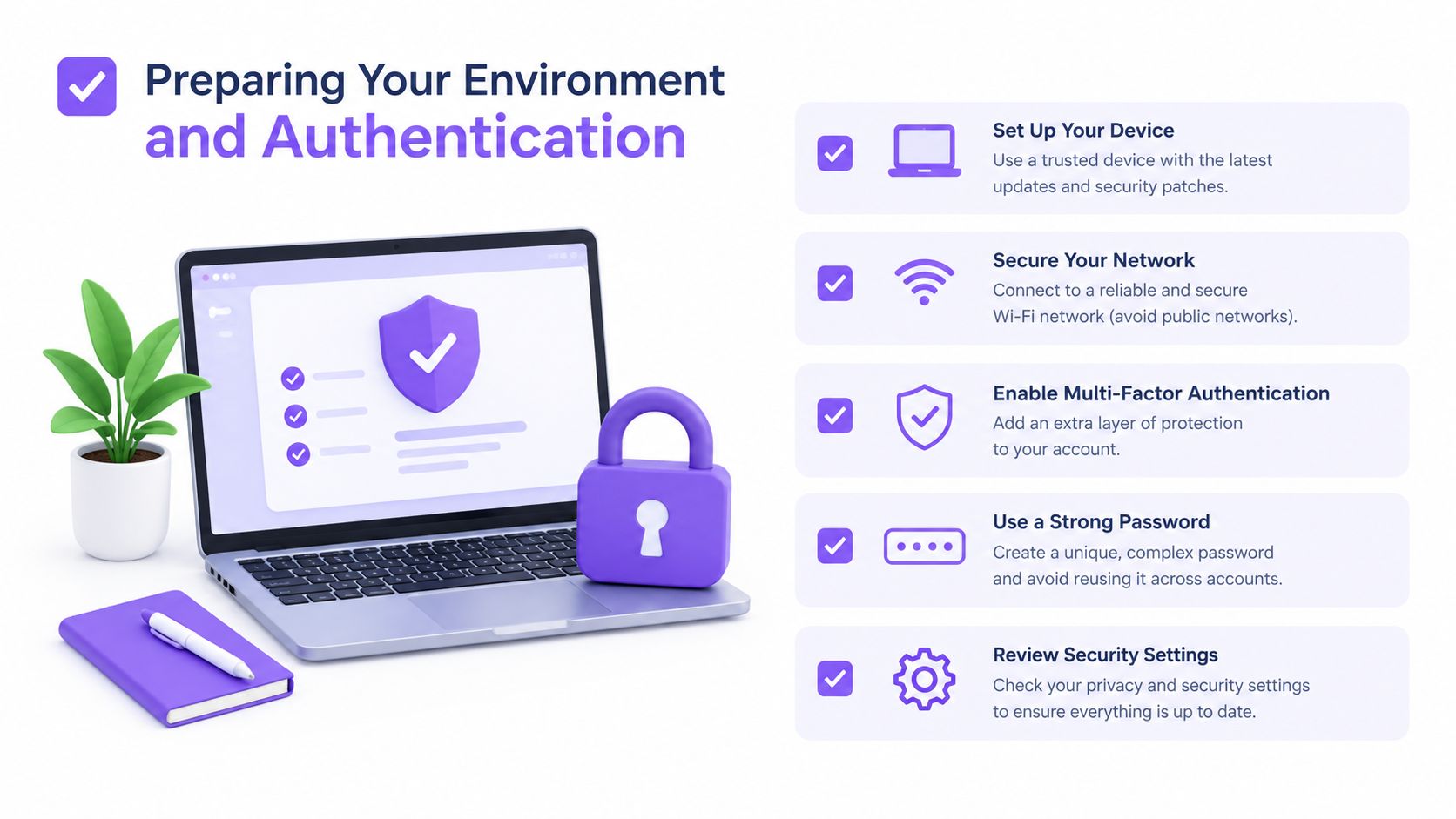
Authentication failures usually begin before anyone opens Outlook. The CRM needs a valid connection to Exchange or Microsoft 365, the tenant must permit the required application access, and each mailbox must have the permissions needed for the selected synchronization scope.
Treat the preparation as an IT change with a named owner. Salesforce’s implementation guidance separates server-side prerequisites from client-side add-in deployment and requires the Exchange environment to authorize communication with business applications. Its implementation guide is a useful reference even for teams deploying another CRM, because the underlying concerns are similar.
A controlled preparation sequence
-
Confirm the Microsoft environment. Identify whether users operate through Exchange, Microsoft 365, Outlook on the web, desktop Outlook, or a mixture. Different clients and mailbox configurations can expose different add-in behavior.
-
Verify application consent. Ask the Microsoft 365 administrator who owns OAuth consent for the CRM application. Tenant policies may require administrator approval, and consent should be limited to verified applications with narrowly scoped permissions.
-
Review mailbox access. Confirm which mailboxes, calendars, shared folders, and service accounts the connector can read or write. Don’t grant broad access just because it makes initial setup easier.
-
Deploy the add-in centrally. Use the organization’s approved app-distribution process rather than asking every rep to install an unreviewed extension. Central deployment improves version control and makes removal possible when a user changes role.
-
Document the identity model. Record how the integration maps Microsoft identities to CRM users, how disabled users are handled, and which administrator receives authentication alerts.
The Captiwate integrations overview can help teams identify how Outlook, calendar services, and CRM systems fit into a broader sales engagement architecture. The technical connection should be validated before any customer data moves.
Designing Sync Rules and Conflict Resolution
Bidirectional sync looks attractive because it promises flexibility. It also creates the hardest governance problem: two systems can edit the same object, and neither knows which change should win unless the team defines that rule in advance.
Consider a booked meeting. A rep changes the time in Outlook, while an operations manager edits the CRM activity to reflect a handoff. If both systems write back without deterministic ownership, the integration may overwrite a change, create a duplicate, or propagate a deletion. Salesforce’s guidance distinguishes one-way modes, where the source system wins, from bidirectional modes, where conflict behavior must be defined.
Choose ownership by object
| Object | Recommended owner | Outlook’s role |
|---|---|---|
| Booked meeting record | CRM | Operational calendar surface |
| Pipeline stage | CRM | No write authority |
| Attendee notification | Outlook | Sends and updates invitations |
| Contact identity | CRM, with controlled enrichment | Communication context |
| Reminder execution | Shared, with explicit rules | User-facing alert |
For Captiwate workflows, the CRM should own the booked meeting record after scheduling. Outlook should remain the working calendar where attendees receive invitations and users manage availability. Store the external event ID, organizer ID, timestamps, and last-sync state so retries remain idempotent and don’t create duplicate meetings.
Define identity before synchronization
Normalize email addresses before matching contacts. Preserve both the CRM record ID and Outlook item ID as cross-system keys. Don’t rely on display names, because two people can share a name and one person can appear under different names across systems.
A field map should cover more than obvious contact details. Include meeting title, start and end time, timezone, organizer, attendees, recurrence, cancellation state, private status, attachments, and last-modified timestamps. Decide which fields are read-only in each system.
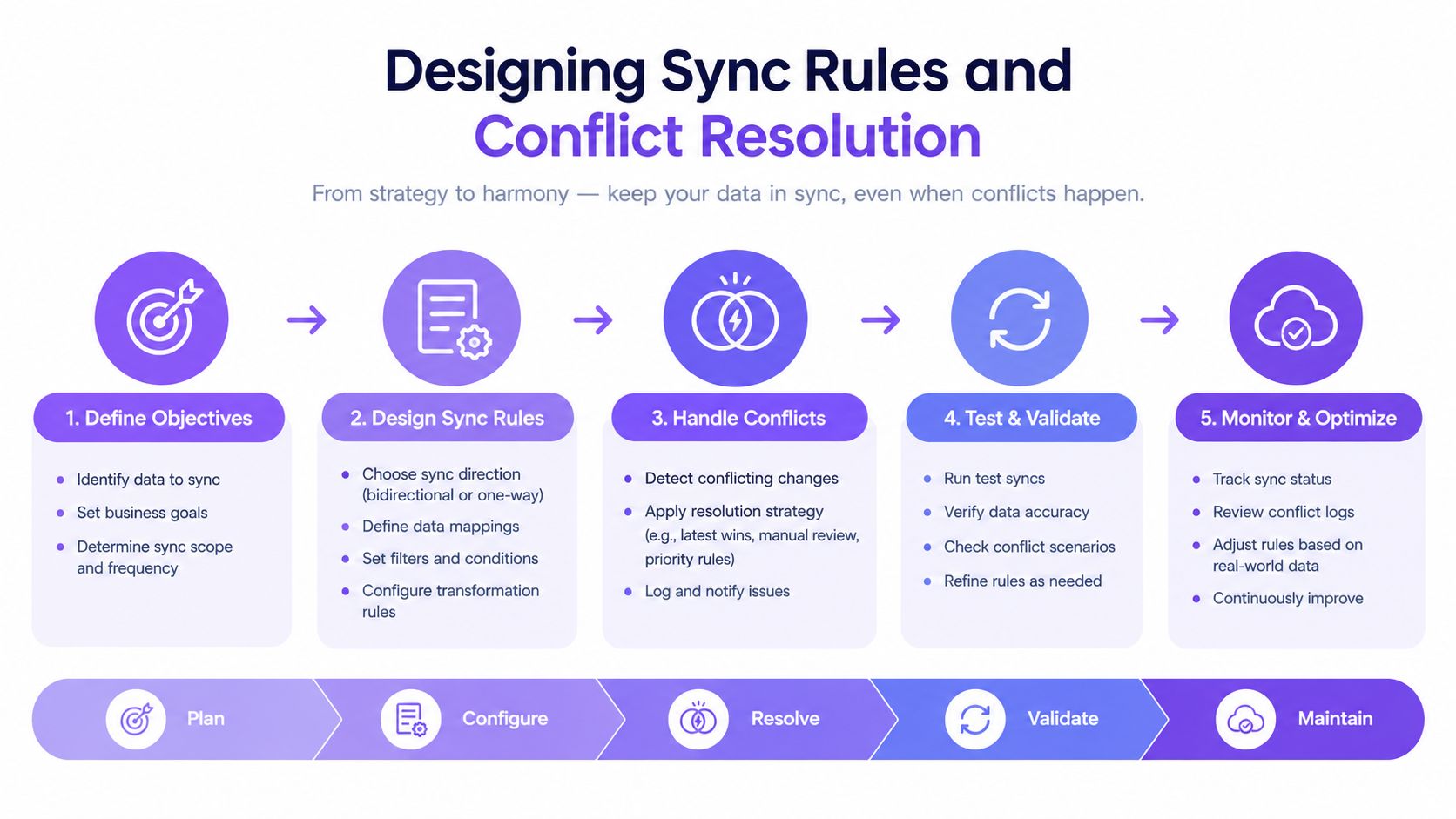
Conflict policy: Every bidirectional object needs a winner, a timestamp rule, or a review queue. “The connector will figure it out” isn’t a policy.
Deletion deserves separate approval. A source deletion can remove its counterpart in some one-way configurations, while the reverse system may not receive a corresponding update. Many teams should begin with soft deletion or quarantine, then permit permanent deletion only after reconciliation confirms the correct record.
Establishing Data Governance and Privacy Controls
“Sync everything” is an easy default and a poor governance policy. Outlook contains customer correspondence, internal discussions, personal messages, sensitive attachments, and private appointments. Once a message is associated with a CRM deal, its visibility may follow CRM permissions rather than the mailbox owner’s original expectations.
Start with narrow folder scope. Select only the folders and object types required for the workflow, then expand after the pilot proves that the data is relevant. Salesforce guidance notes that selected Outlook folders determine which data synchronizes, so broad selection can ingest internal or personal content unintentionally.
Rules that should exist before launch
- Customer correspondence: Define which external messages qualify for automatic capture and whether internal replies are excluded.
- Private appointments: Exclude private calendar events by default unless there’s a documented business reason to process them.
- Internal messages: Keep employee-only threads out of customer records unless a user intentionally attaches a specific business outcome.
- Attachments: Decide whether attachments are copied, linked, or blocked, and define retention requirements for each choice.
- Role changes: Revoke mailbox access when a rep changes role, leaves the company, or no longer needs customer-record visibility.
- Auditability: Log consent, synchronization events, permission changes, failures, and administrative overrides.
OAuth 2.0 and least-privilege permissions reduce exposure, but technology can’t replace operating policy. Microsoft 365 administrators should control consent for third-party applications, limit scopes, and review access regularly. A role-based framework such as this access model for agencies provides useful language for separating visibility by role, account, and responsibility.
Captiwate’s information security and compliance guidance is also relevant when visitor intent, chat transcripts, live conversations, meeting details, and CRM records converge in one sales context. Define who may view each category before the integration makes that context broadly available.
Governance test: If a rep asks, “Who can read this private meeting after it syncs?”, your team should have a precise answer before deployment.
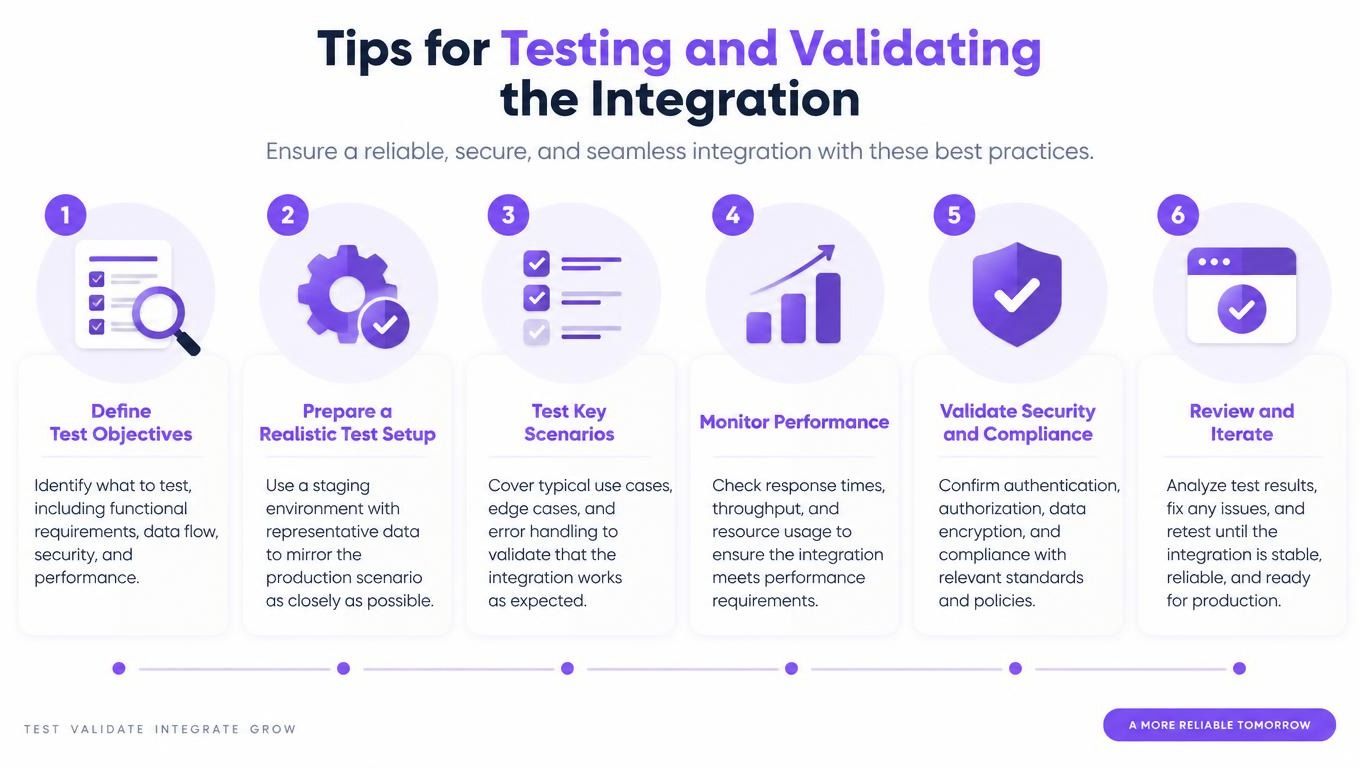
Testing and Validating the Integration
A successful authentication response proves only that two systems can communicate. It doesn’t prove that records match correctly, permissions are safe, retries are idempotent, or deletions behave as intended.
Use a sandbox or pilot tenant with a small sales cohort. Salesforce’s integration guidance supports a staged rollout that separates environment verification, add-in deployment, field scope, permissions, piloting, and workflow validation. Don’t move to broad deployment until the test results are documented and reviewed by sales operations, IT, and the relevant privacy owner.
The validation matrix
Test at least 10 scenarios per object class, as recommended in the available implementation guidance. Cover contacts, meetings, tasks, and email association separately.
- Create a record in Outlook and confirm the intended CRM result.
- Create a CRM record and confirm whether Outlook should receive it.
- Update the same record in each system.
- Make simultaneous edits and verify the conflict winner.
- Rename an attendee or contact.
- Change timezone or meeting duration.
- Modify a recurring event.
- Cancel the meeting and inspect both systems.
- Delete the source record and verify deletion policy.
- Interrupt the network, retry the operation, and confirm no duplicate appears.
Measure outcomes, not API activity
A connector can return successful responses while creating duplicate contacts or exposing unauthorized content. Define acceptance criteria as zero duplicate records, zero unauthorized data exposure, and 100% reconciliation of test events, rather than treating API success as the finish line.
Quarantine malformed records instead of repeatedly retrying them. Audit synchronization errors, alert on repeated failures, and retain enough identifiers to reconstruct what happened. Review the logs with real users, because a technically correct meeting may still be unusable if the rep can’t find the associated account or understand who owns the next action.
Release gate: No production rollout without a signed test matrix, an approved deletion policy, and a named owner for post-launch incident response.
Connecting Synced Data to Sales Engagement
Synchronization becomes commercially useful when it triggers a clear next action. A booked meeting should update the CRM, preserve the account context, notify the responsible rep, and create a reliable handoff. A conversation outcome should inform the next activity instead of disappearing into a mailbox.
That workflow starts before the meeting. A visitor who shows buying intent on a pricing or product page can be routed to a live conversation, qualified through chat, or offered a calendar booking. The CRM should receive the contact, company, intent context, scheduled meeting, and eventual outcome through defined fields and ownership rules.
Build the handoff around events
- Intent detected: Identify the account and apply the correct routing rule.
- Conversation started: Record the channel and relevant qualification context.
- Meeting booked: Create the CRM activity and place the invitation on the connected Outlook calendar.
- Meeting changed: Update the canonical CRM activity using the stored external event ID.
- Outcome recorded: Write the disposition, next step, and owner back to the account or opportunity.
- Follow-up due: Surface the task through the rep’s normal workflow, without creating competing reminders.
lead distribution software can support consistent routing between marketing, SDR, and account teams. The integration shouldn’t merely archive activity. It should preserve continuity from anonymous website behavior to a scheduled conversation and a recorded sales outcome.
The key design choice is restraint. Don’t send every behavioral signal into every CRM object. Map intent, conversation, meeting, and outcome data to the records and teams that can act on it. Keep Outlook focused on communication and availability, while the CRM maintains commercial ownership and history.
When those boundaries are explicit, reps don’t need to reconstruct the buyer journey from separate inboxes, calendars, chat tools, and meeting notes. Managers get a more dependable account view, and operations teams can diagnose failures by object, owner, and synchronization state.
Captiwate connects website visitor intent, AI chat, live video conversations, meeting bookings, and recorded outcomes with CRM workflows while Outlook handles calendar availability and invitations. Visit Captiwate to see how a governed handoff can turn high-intent website activity into coordinated sales conversations.