
A screen sharing website doesn’t need to mean a downloadable remote desktop client, a browser plugin, or a complicated waiting room. That advice solves the wrong problem. For a sales team, the core challenge is getting a prospect from “I need help” to a useful shared view without asking them to install software, expose their entire desktop, or fight through a permission prompt with no explanation.
The browser already provides the core building blocks. WebRTC can carry a live media stream, the Screen Capture API can request a selected screen or window, and DOM-level co-browsing can let an agent guide a visitor inside the existing page session. The implementation matters, but the operational layer matters more. A technically correct getDisplayMedia() call still fails if the visitor shares the wrong window, rejects the prompt without recovery guidance, or exposes a password manager during a recorded call.
Table of Contents
- Why Your Screen Sharing Website Should Live in the Browser
- How Browser Screen Sharing Actually Works Under the Hood
- Adding Screen Sharing to Your Website With a Single Snippet
- UX Patterns That Make Visitors Actually Share Their Screen
- Security and Compliance Risks You Cannot Afford to Skip
- Captiwate Co-Browsing vs Generic Screen Sharing Tools
- A Short Checklist to Ship Your Screen Sharing Website This Week
Why Your Screen Sharing Website Should Live in the Browser
The common assumption is that a serious screen sharing website must behave like remote support software. The visitor downloads an application, approves system access, joins a room, and waits for an agent. That flow may be appropriate for tightly controlled IT support, but it creates unnecessary friction on a pricing page, product tour, or checkout workflow.
A browser-native experience keeps the conversation attached to the visitor’s existing session. A prospect can click a contextual call button, approve a narrowly scoped request, and let a representative guide the relevant page. For revenue teams, that difference is practical. The visitor is already evaluating the product, so moving them into an installer or separate desktop client interrupts the buying moment.
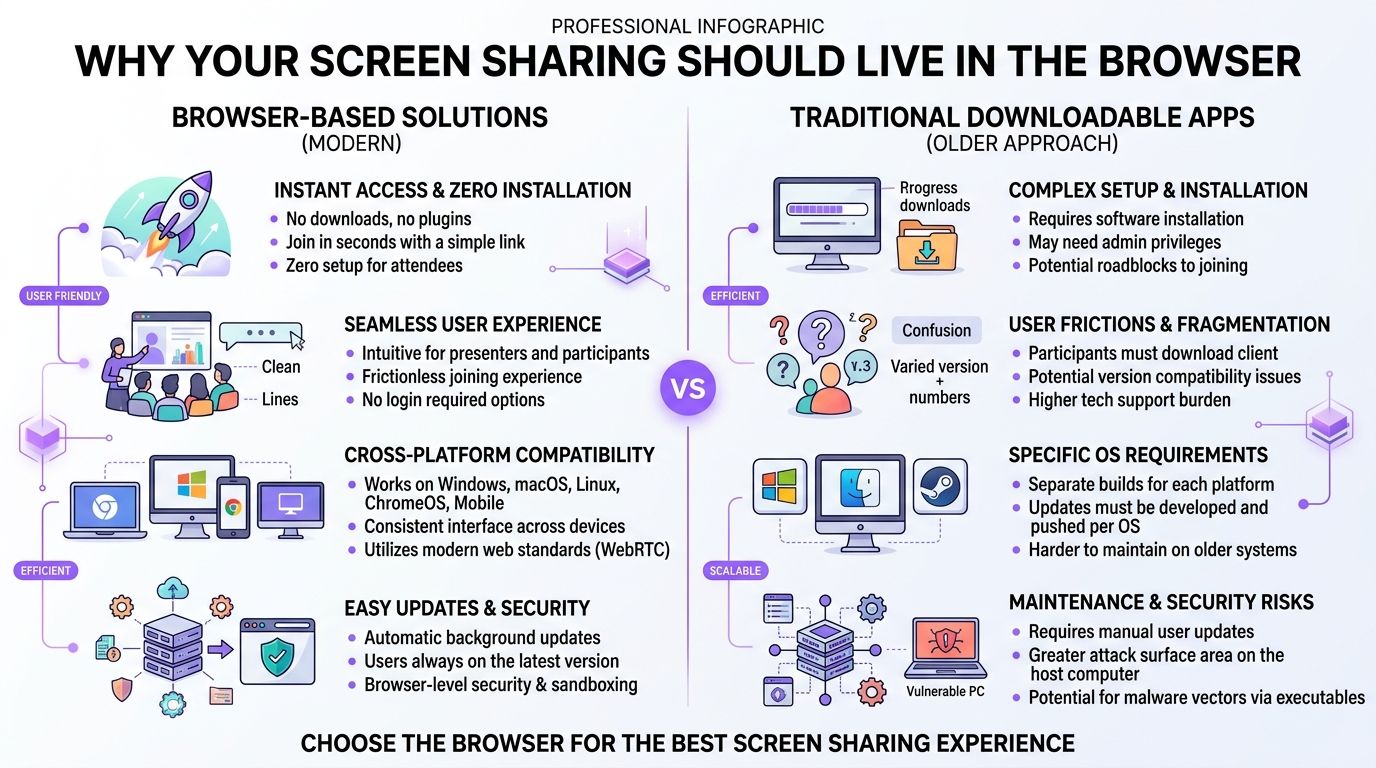
Browser sharing is now a business workflow
Screen sharing has moved well beyond niche remote-desktop use. Microsoft describes adoption rates of 45% for screen sharing and 50% for audio conferencing, while 66% of companies report using web conferencing with clients and prospects during sales pitches in its overview of workplace use cases. The same article says high-achieving sales organizations are twice as likely as underperformers to use web conferencing to create more engaging customer experiences. See Microsoft’s workplace screen sharing guidance for the cited context.
That shift changes the product brief. A screen sharing website now needs to support demos, troubleshooting, training, proposal reviews, and onboarding, not just an operator controlling another computer. It should load quickly, explain permissions clearly, expose a visible stop control, and protect the visitor from sharing more than intended.
Co-browsing removes a different kind of friction
Full-screen capture is useful when an agent must see an application outside the website. It isn’t always the right choice for a sales conversation. In-browser co-browsing can keep the interaction inside the visitor’s current page, where the agent highlights elements, explains a form, or guides a workflow without asking the visitor to choose a monitor or application window.
That approach doesn’t eliminate consent. It makes the consent surface narrower and easier to explain. The visitor can understand that the representative is helping with the page they’re viewing, rather than receiving an ambiguous request to expose the entire desktop.
Practical rule: If the task concerns your website, start with co-browsing. Use full-screen capture only when the workflow genuinely requires content outside the page.
The rest of the implementation should follow that rule. Build the browser path first, then add broader capture only where the use case justifies its permission and privacy cost.
How Browser Screen Sharing Actually Works Under the Hood
There are two distinct technical paths, and confusing them leads to poor architecture.
The first uses the browser’s Screen Capture API, typically through navigator.mediaDevices.getDisplayMedia(). The browser presents its own picker, the user selects a screen, window, or tab, and the browser returns a MediaStream. Your application then sends that stream through WebRTC.
The second uses DOM-level co-browsing. Instead of encoding pixels into a video track, the system synchronizes page state, element changes, pointer activity, and permitted interactions through a WebSocket or WebRTC data channel. The remote view can render the relevant page structure directly, which avoids video codec decisions for the shared content.
The WebRTC pipeline
A browser-native screen sharing website normally has these moving parts:
- Capture request: A deliberate user action calls
getDisplayMedia(). The browser owns the permission picker, and the application can’t select a display on its own. - Signaling server: The peers exchange setup messages, commonly through a WebSocket-backed signaling service. Signaling helps them discover each other, but it isn’t the media path.
- Peer connection:
RTCPeerConnectioncarries the video track, and optionally an audio track, after the application adds the captured stream. - SDP exchange: The peers negotiate media capabilities, directions, codecs, and transport details through offer and answer messages.
- ICE candidates: The connection gathers network paths and tests how the peers can communicate. A real deployment needs suitable handling for networks that won’t permit a direct route.
Chrome’s implementation guidance demonstrates the relationship between capture APIs and RTCPeerConnection, and its encoder benchmarks compare 400-second trials at a maximum 30 frames per second across 1080p and 1440p scenarios. The same Chrome WebRTC screen sharing guide recommends considering VP8 on macOS or H.264 on Windows for low latency and high frame rate, while VP9 or AV1 can suit higher quality at lower bandwidth when the device has enough CPU capacity.
Codec choices affect the experience
For video tracks, VP8 and H.264 are sensible production starting points when compatibility and responsiveness matter. VP9 and AV1 can improve compression efficiency, but a sharper stream isn’t helpful if encoding consumes enough CPU to make the agent’s laptop stutter.
For spoken audio, Opus is the normal WebRTC choice. Co-browsing takes a different route because it doesn’t encode the page into a video track. It can send structured changes over a data channel and render them locally, which can make pointer movement and field guidance feel immediate. That doesn’t make co-browsing universally better. Complex canvas applications, native desktop software, and content outside the page still require media capture.
A useful technical explanation of how screen sharing works helps separate these paths before implementation begins.
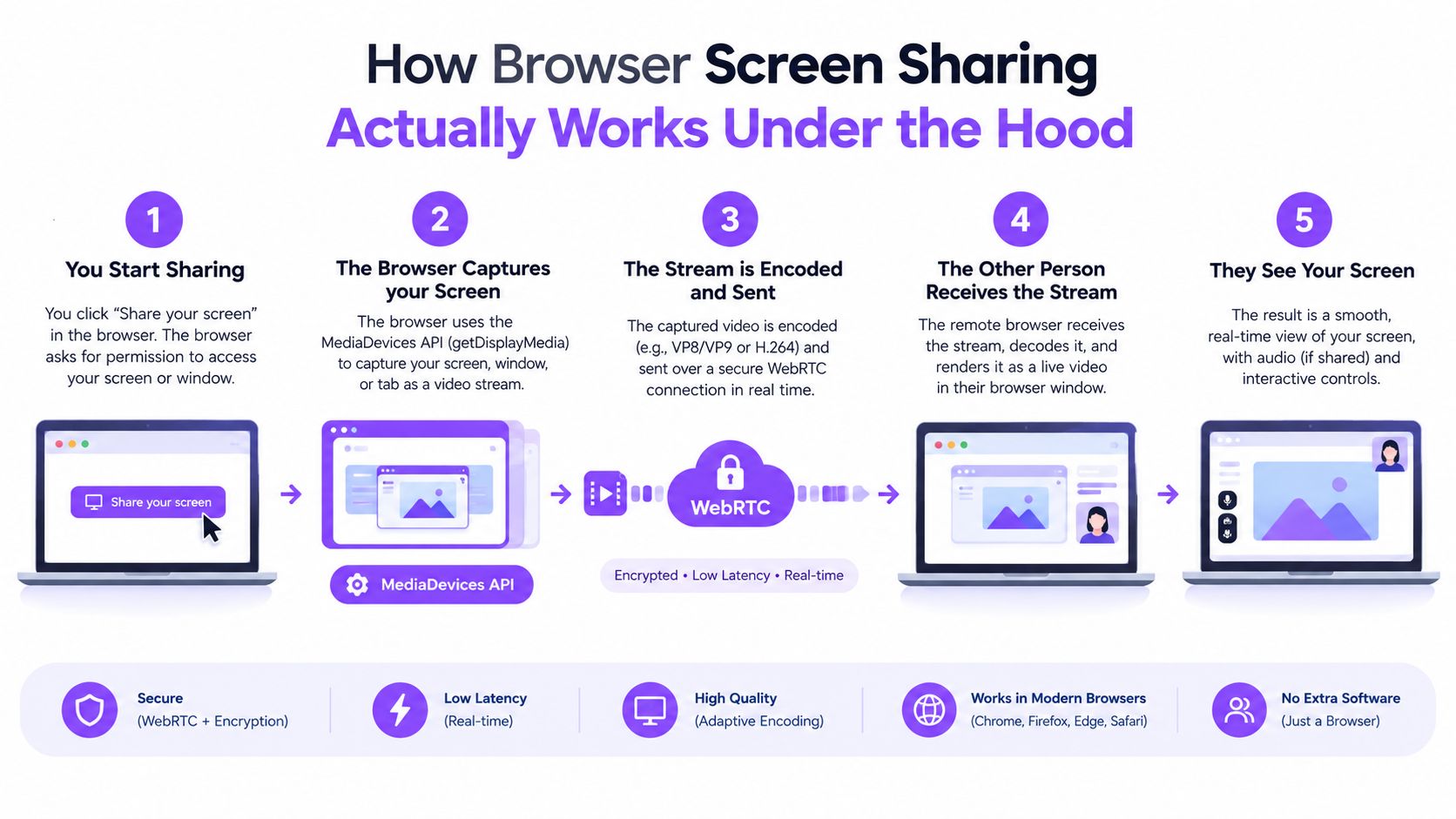
Choose full capture when the agent needs pixels from another application. Choose co-browsing when the agent needs to guide a page, explain an interface, or help complete a revenue workflow.
Adding Screen Sharing to Your Website With a Single Snippet
A same-day launch is possible if you don’t build the signaling layer, session broker, agent console, recording pipeline, and browser compatibility logic from scratch. Use a managed browser engagement service that supplies its own script, then configure the experience around a clear visitor action.
Place the provider’s asynchronous script in the document head, before the application code that binds your call-to-action. The exact script URL, account identifier, and configuration attributes must come from the service account. Don’t copy a random snippet from a blog, because the script must be tied to the correct workspace, allowed origins, and environment.
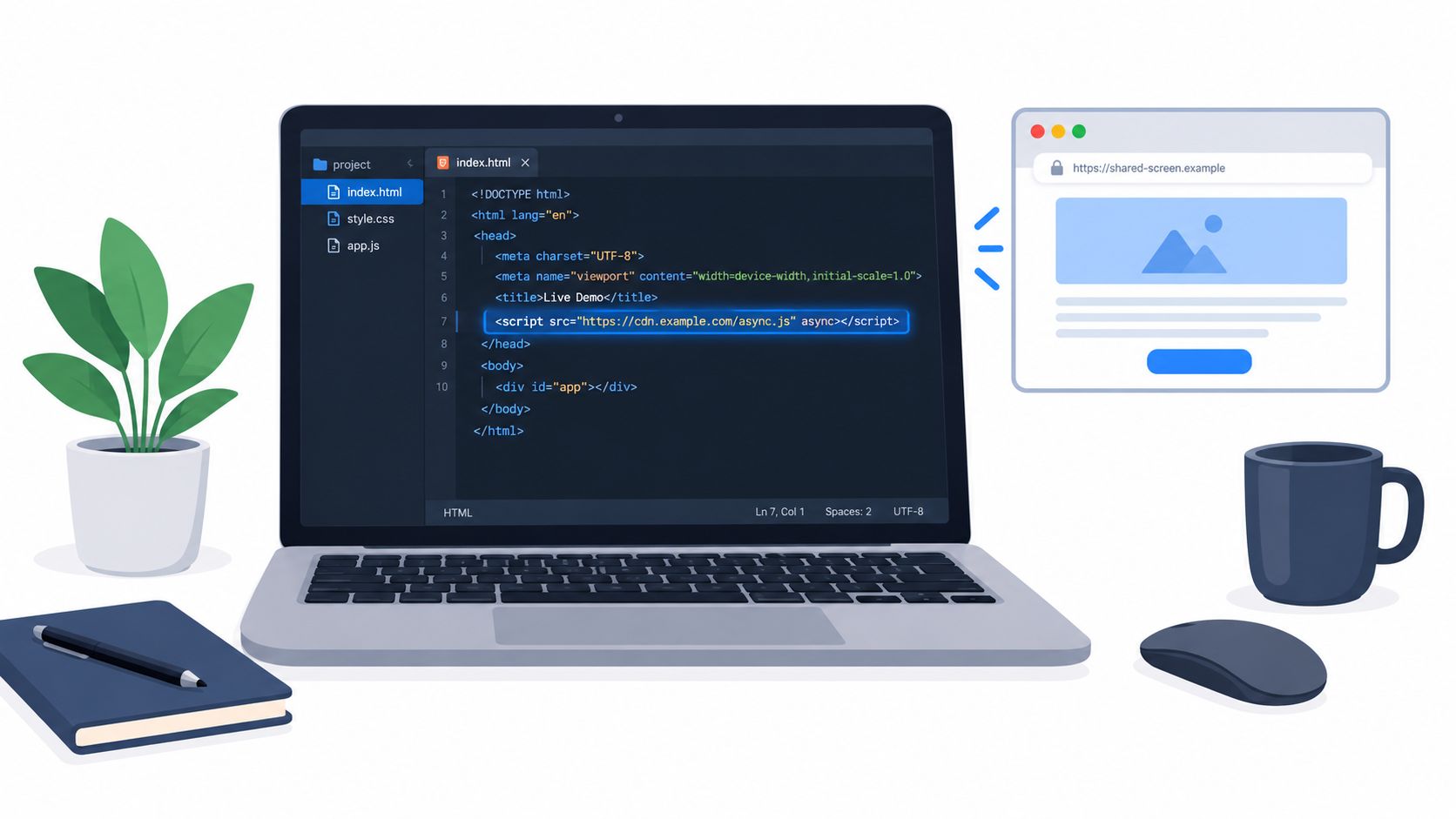
Keep the integration event-driven
Your page should have one intentional CTA, such as “Share my view with an expert,” rather than automatically opening a permission prompt on page load. Bind that button to the provider’s start method or configured selector, and handle the complete lifecycle:
- Start: Create or join a named session after the visitor clicks.
- Connect: Show the representative’s name, the purpose of the session, and the active sharing scope.
- Stop: End the session, stop local media tracks where applicable, and remove the active sharing UI.
- Revoke: Invalidate the session authorization when the visitor ends access or the representative hands the conversation to another person.
- Fallback: Explain that the browser can’t provide the requested capture and offer chat, a call link, or guided instructions instead.
Use stable room naming rather than ad hoc values. A room can be associated with a lead, support case, or authenticated workflow, but it shouldn’t expose an email address or internal identifier in a public URL. Configure visitor and agent roles separately, restrict the allowed origins, and make the agent’s recording permission independent from the visitor’s sharing permission.
Test the uncomfortable paths
A successful test is not “the agent saw the screen.” Test the cases that break live conversations:
- Chrome and Edge: Verify the picker, tab capture, window capture, stopping from the browser control, and reconnect behavior.
- Safari: Test the permission model on every supported version, including the change in behavior introduced in Safari 16.4 and later if those versions are in your support range.
- Firefox: Confirm the rejection message, repeated permission attempts, and cleanup after the user closes the picker.
- Embedded pages: Test the site inside a cross-site iframe. Permissions policy and iframe constraints can change what the browser permits.
- Restricted contexts: Confirm the fallback when the page isn’t served from a secure context or the required capture API isn’t available.
- Rep handoff: Make sure a disconnected agent doesn’t leave the visitor staring at a stale session panel.
Graduate to a custom WebRTC build when you need control over media routing, recording, codec policy, custom telemetry, or regulated data handling that a managed integration can’t provide. For a sales team validating demand, building all of that before testing the conversation usually delays learning without improving the first user experience.
UX Patterns That Make Visitors Actually Share Their Screen
The permission prompt is part of your product. Calling getDisplayMedia() immediately after a visitor lands on a page is poor UX because the browser asks for a consequential action before the visitor understands who is asking or why.
Put the explanation beside the button. Name the representative, describe the task, and state what the visitor can stop. “Let Maya guide you through the checkout page” is more useful than “Enable screen sharing.” The copy should distinguish between sharing the current tab, sharing a window, and sharing the entire display.
Design for three permission states
Treat permission as a small recovery flow rather than a single button:
- Before the prompt: Explain the scope in the page UI. Ask the visitor to close private tabs and select the relevant window or tab.
- During hesitation: If the picker remains open, show a lightweight helper in the surrounding interface. Tell the visitor what to select without covering the browser’s own prompt.
- After rejection: Keep the conversation alive. Explain how to retry through the browser’s site permissions, then provide a no-capture alternative such as chat or step-by-step guidance.
Don’t blame the visitor for rejecting access. They may have misunderstood the request, selected the wrong source, or work in an environment that blocks capture. Your recovery state should preserve their intent instead of treating rejection as a dead lead.
“No screen share is required. We can still walk through the page together.”
That sentence belongs in the rejected state, not buried in a help centre. A fallback is part of conversion design.
Keep control visible throughout
A floating session bar should show the active state and offer direct controls. The visitor should be able to stop sharing, switch the selected source when the browser permits it, mute audio, and end the session without searching through the page.
When the visitor clicks end, stop every MediaStreamTrack, close any active peer connection, clear temporary buffers, and remove the session component from the DOM. If the representative disconnects, replace the live view with a clear status message and an option to reconnect. Never leave a frozen frame that looks like the agent is still watching.
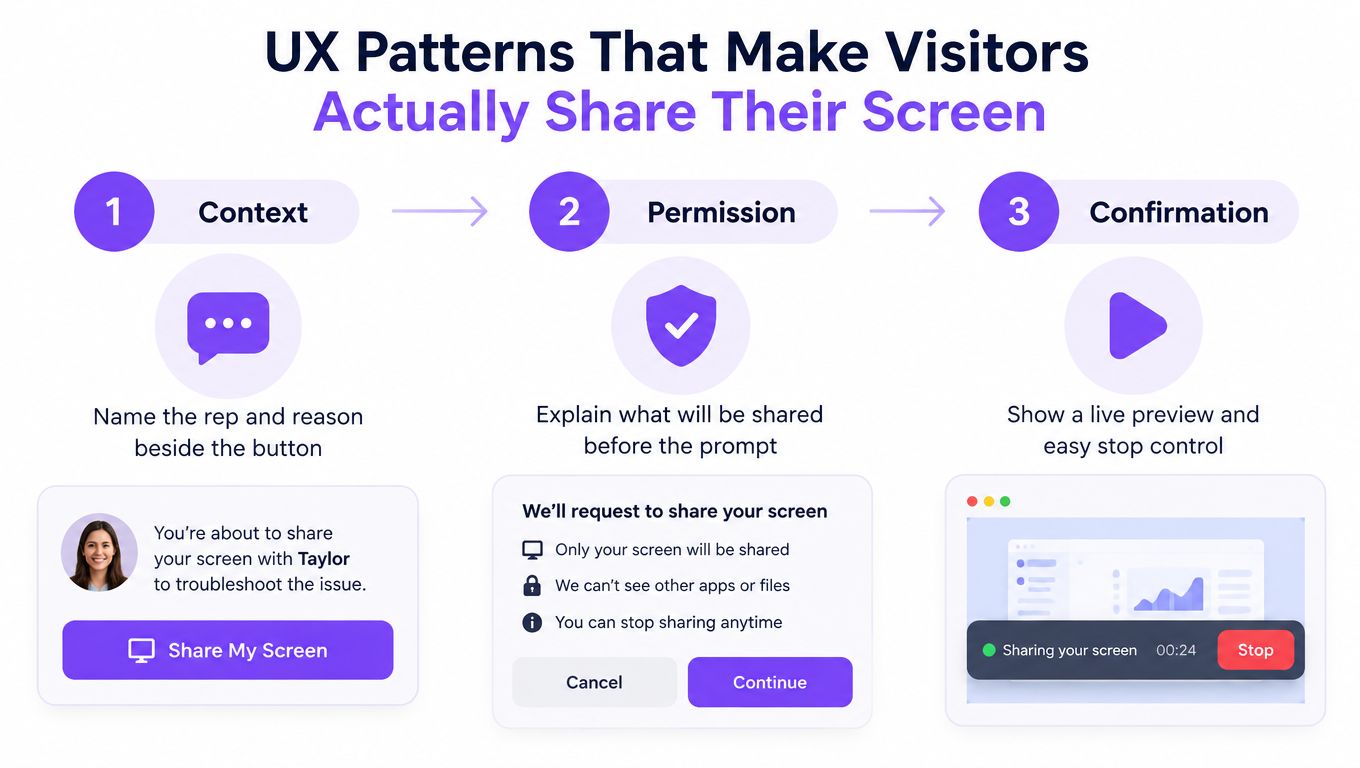
A clean browser profile is also a UX control. Recommend a profile used for the session, or at least ask the visitor to close unrelated tabs and suppress desktop notifications. These steps reduce accidental exposure and make the permission choice easier to understand.
Security and Compliance Risks You Cannot Afford to Skip
A captured screen can reveal much more than the page the visitor intends to discuss. Passwords, URL-bar content, notifications, browsing history, customer records, and financial information can enter the shared surface without a malicious actor doing anything unusual.
A security study describes attacks against browser screen-sharing interactions involving cross-site request forgery, history sniffing, and information stealing, with impacts including account compromise and economic loss. The research on screen-sharing security attacks is a useful reminder that encryption protects transport, not careless scope or unsafe application behavior.
Control the capture surface
Prefer tab or window sharing when the workflow allows it. If full-display capture is necessary, tell the visitor exactly what can appear and ask them to close password managers, banking pages, administrative consoles, personal messaging, and unrelated customer records.
Don’t rely on a warning alone. Mask sensitive inputs in your own application, prevent recordings from including protected fields where technically possible, and make recording a separate, explicit action. Keep temporary media out of localStorage, avoid putting session tokens in URLs, and use short-lived authorization bound to the intended origin and role.
For a practical overview of secure screen sharing methods, compare the advice with your own threat model rather than treating a checklist as proof of compliance.
Encryption isn’t the whole compliance answer
A compliant workflow needs more than encrypted media. Security and compliance guidance notes that HIPAA- or GDPR-sensitive screen sharing requires authenticated sessions, role-based access, complete logging, and a system of record. It also stresses that lawful basis, consent, audit trails, and documented retention rules need to match the workflow. The GDPR screen sharing compliance guidance covers that broader operational view, including the relevance of admin controls and patching after a reported macOS Screen Sharing vulnerability.
Use Captiwate’s security information as one reference point when evaluating the controls a managed platform exposes, then verify the details against your own legal and security requirements.
| Risk | Mitigation Control |
|---|---|
| Full desktop reveals unrelated data | Default to a tab or window, and explain the selected scope before capture |
| Notifications expose personal or customer information | Ask the visitor to suppress notifications and close unrelated applications |
| Recordings retain sensitive fields | Require explicit recording consent, redact where possible, and enforce a documented retention policy |
| Unauthorized agent access | Authenticate agents, apply role-based permissions, and expire session authorization |
| Replay or session takeover | Use short-lived origin-bound tokens, rotate access on handoff, and avoid tokens in public URLs |
| Incomplete investigation | Log session creation, consent, agent identity, start and stop events, recording changes, and deletion requests |
| Unpatched remote-access capability | Maintain browser and operating system patching, and disable unnecessary remote-access features |
Captiwate Co-Browsing vs Generic Screen Sharing Tools
Generic WebRTC screen sharing treats the parties as peers exchanging media streams. The visitor chooses a source, the browser captures pixels, and the agent receives a video track. That model is flexible, but it makes the visitor responsible for a series of decisions at exactly the point where a sales conversation should feel simple.
The agent may need to explain which window to select, why the browser prompt appeared, what the session can access, and how to stop it. The approach works well for demonstrations that require an application outside the website. It adds friction when the agent only needs to guide a form, point to a product control, or help a prospect understand a pricing workflow.
Co-browsing changes the unit of collaboration
With DOM-level co-browsing, the shared object is the permitted page state rather than a recording of the whole display. The agent can highlight an element, guide the visitor through a workflow, and request an interaction without receiving unrelated tabs by default. Element-level redaction and scoped permissions are important because the DOM can contain sensitive values even when they aren’t visibly prominent.
The trade-off is technical. Co-browsing needs careful handling of dynamic interfaces, iframes, canvas content, authentication boundaries, and application state. It isn’t a universal substitute for screen capture. It is a better fit when the revenue team wants to guide a visitor through its own web experience.
Captiwate’s co-browsing product illustrates this model with permission-based screen control, allowing a customer to approve a session while an agent sees the relevant view and guides the interaction live.
Pick the path by the job
| Sales or support requirement | Better starting point |
|---|---|
| Explain a form or pricing page | DOM-level co-browsing |
| Guide a prospect through a web product | DOM-level co-browsing with scoped interaction |
| Review a spreadsheet in a desktop application | Window capture |
| Troubleshoot browser settings across unrelated pages | Carefully scoped screen or window capture |
| Show a presentation or local design file | Screen capture |
| Keep a sensitive checkout workflow focused | Co-browsing with redaction and explicit control |
The commercial question is not whether video works. It does. The question is whether the visitor needs to download anything, choose an operating-system source, or expose more context than the representative needs. For many revenue conversations, in-browser co-browsing keeps the interaction in the same tab and removes avoidable setup without pretending that permission and privacy no longer matter.
A Short Checklist to Ship Your Screen Sharing Website This Week
A practical launch doesn’t start with a large architecture diagram. It starts by deciding what the representative must see and what the visitor must never expose.
Day one, choose the narrowest technical path
Write down the workflow in one sentence. If the sentence says “help the prospect complete the form on our website,” use co-browsing as the default. If it says “inspect a local application,” use window capture. If it says “present a deck,” use a deliberately selected tab or window rather than assuming full-display sharing is necessary.
Then confirm the browser path, the session roles, the fallback channel, and whether recordings are required at all. Removing recording from the first release can reduce the amount of sensitive data you must govern.
Day two, wire the visitor experience
Add the managed script to the production layout, bind one clear CTA, and show the representative’s name and purpose beside it. Implement the three permission states, including a rejection recovery modal and a non-capture alternative.
Use a persistent stop-sharing control. If your own application contains sensitive fields, mask them in the interface and verify that the agent view respects those restrictions. Make the disconnected state explicit, with a reconnect or chat option instead of an abandoned media panel.
Day three, test privacy and lifecycle behavior
Run a session with a clean browser profile, then run another with notifications, unrelated tabs, and sensitive-looking form fields present. Confirm that the visitor understands the capture scope and that stopping the session stops tracks, closes connections, clears temporary state, and removes the view.
Check recording consent separately from share consent. Verify that agents can’t activate recording without the required role, that handoffs invalidate the previous authorization where appropriate, and that your logs capture the events your support and compliance teams need.
Day four, run the browser matrix
Smoke-test Chrome, Edge, Safari, and Firefox. Include a cross-site iframe, rejected permissions, browser-level stop controls, network interruptions, agent disconnection, and a second attempt after rejection.
Don’t test only with the engineer who knows what should happen. Ask a salesperson or support specialist to complete the flow without coaching. Their confusion will expose unclear copy faster than another code review.
Day five, verify the business path
Inspect the analytics events for CTA clicks, permission acceptance, rejection, stop, reconnect, and fallback selection. Confirm that the agent dashboard loads, the correct representative receives the session, and the CRM or collaboration handoff preserves the conversation context.
Rehearse one complete session with a teammate. Start on a high-intent page, explain the scope, guide a task, stop access, and review the resulting log. A screen sharing website is ready for real visitors when the recovery path works as deliberately as the happy path.
Captiwate provides in-browser live conversations, co-browsing, screen sharing, and routing features for teams that want to guide prospects without download friction. Visit Captiwate to evaluate a browser-native workflow for sales and support sessions.