
A visitor lands on your pricing page, compares two plans, and pauses over the “Talk to sales” button. Instead of submitting a form and waiting for an email, they click once. The browser asks for camera and microphone access, the visitor agrees, and a sales rep appears on screen while the buying question is still fresh.
No Zoom link. No app download. No calendar exchange before the first conversation.
That experience is an in-browser video call. It can turn a high-intent moment into a live sales conversation, but the visible simplicity hides several decisions about media transport, permissions, browser support, privacy, fallbacks, and CRM handoff. WebRTC makes browser calling possible. It doesn’t, by itself, make the experience reliable or persuasive.
Table of Contents
- The Moment a Sales Rep Appears on Your Pricing Page
- How an In Browser Video Call Actually Works
- Why Browser Calls Win on Speed, Context, and Friction
- The Two Use Cases That Benefit Most
- What Reliable Browser Video Calls Actually Require
- Privacy and Security Questions Buyers Rarely Ask
The Moment a Sales Rep Appears on Your Pricing Page
A prospect has already done the quiet work of buying research. They’ve reviewed your product page, opened the pricing page, and perhaps checked how your plans compare with alternatives. Teams often use resources such as compare competitor pricing data to understand that comparison environment, but the prospect still has a question your page can’t answer: “Which option fits my situation?”
The visitor clicks a live-call prompt. The page explains why camera and microphone access are needed, then the browser displays its permission request. After approval, a short connection state appears. On the rep’s side, the system shows that a visitor is waiting, along with the page or intent signal that triggered the invitation.
The rep accepts. Their video appears inside the website experience, and the visitor can ask about implementation, security, integrations, or contract scope without leaving the page. If the visitor isn’t ready for video, the same interface can offer chat or a meeting option instead of treating a declined camera request as a lost lead.
What the visitor experiences
The journey is short, but each step affects conversion:
- A relevant invitation: The prompt appears on a page where the visitor is showing meaningful buying interest, rather than interrupting every session.
- A clear permission request: The visitor understands why the browser needs access and what will happen next.
- A visible connection state: The interface confirms that the call is connecting instead of leaving the visitor guessing.
- A useful first conversation: The rep answers the question that brought the visitor there.
- A recorded outcome: The conversation can lead to qualification, a scheduled meeting, or a documented follow-up.
That last step matters. A live call isn’t valuable merely because a camera opened. Revenue teams need the conversation, visitor context, ownership, and next action to remain connected after the browser closes.
Practical rule: Design the call around the visitor’s question, not around the novelty of putting a salesperson on camera.
What the rep needs
The representative needs more than a video feed. They need enough context to avoid beginning with “How can I help?” when the system already knows the visitor was comparing enterprise plans or reviewing a specific product capability. Routing rules, CRM synchronization, calendar availability, and collaboration alerts help turn an instant call into a repeatable sales process.
The central question is simple: how can a webpage open a real conversation, and what does it take to make that conversation work across browsers, devices, networks, and privacy requirements?
How an In Browser Video Call Actually Works
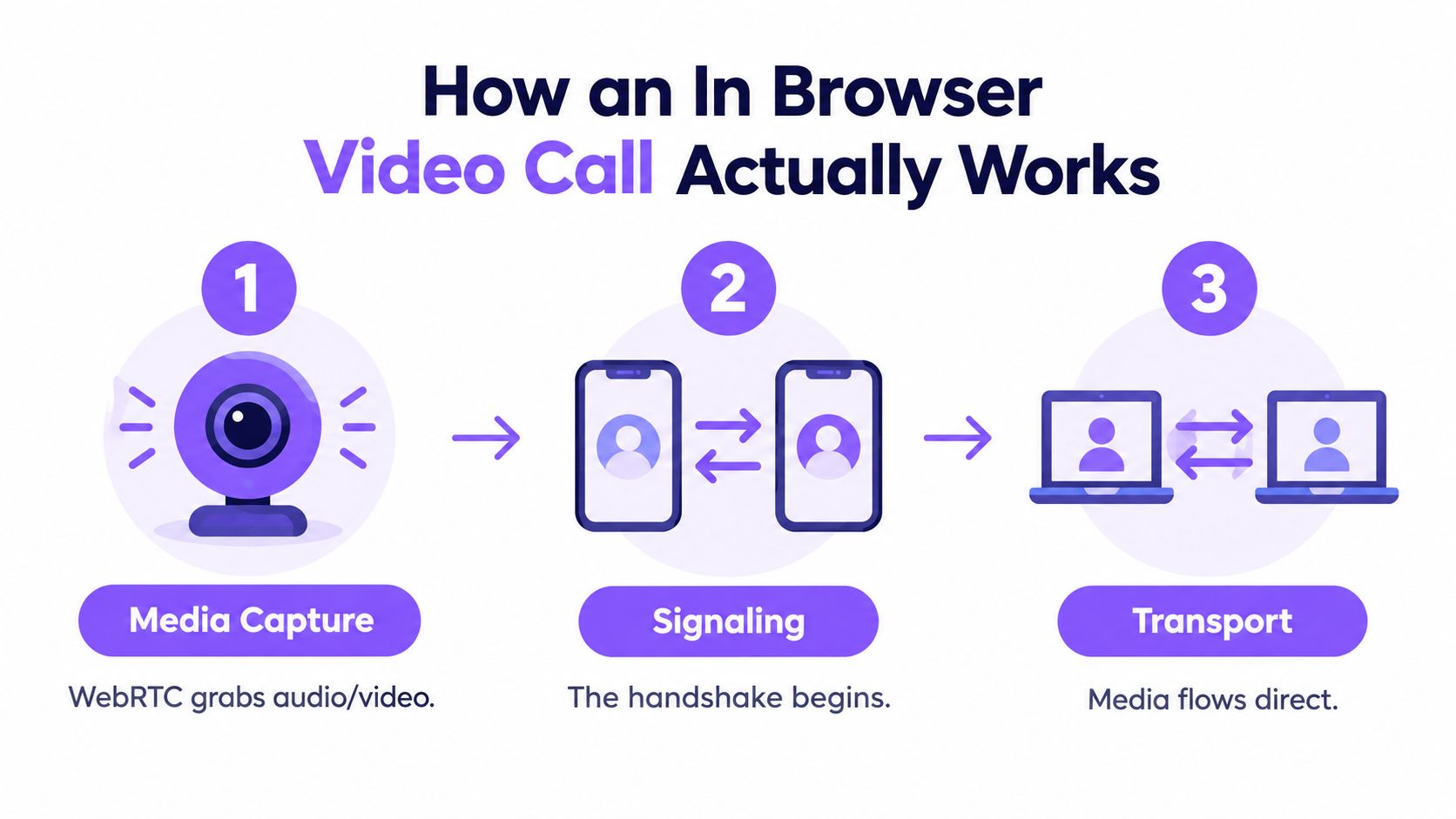
An in-browser call isn’t one feature. It’s a coordinated system of browser APIs, signaling services, network helpers, permission controls, and business workflows.
Start with the permission prompt most users recognize. When a visitor allows access, the browser uses WebRTC to capture microphone and camera media. WebRTC established the technical foundation for browser-native audio, video, and data exchange without browser plugins. By May 2020, Google reported that Chrome, Edge, Firefox, and Safari supported WebRTC, making more than 85% of installed browsers globally capable of serving as real-time communications clients, as documented in the browser support reference.
Step one captures the media
The browser obtains audio and video streams through WebRTC. The visitor sees a preview, while the application checks whether a usable microphone and camera are available. This is also where the permission model matters. Browsers restrict camera and microphone access to secure contexts, so the call experience should run over HTTPS and explain the request in plain language.
The visitor doesn’t need to understand codecs or tracks. They need to know whether they’re muted, whether the camera is on, and whether the other person can hear them.
Step two performs the handshake
Before media can flow, the two sides need to exchange connection information. That exchange is called signaling. It typically carries session descriptions and network candidates through an application server, but signaling isn’t the media stream itself.
A useful mental model is a phone call: signaling is the process of discovering who is calling, agreeing on call settings, and deciding how to connect. The browser then negotiates media capabilities and begins establishing the route. A practical step-by-step VoIP calling guide can help teams distinguish this connection setup from the audio conversation that follows.
Step three transports the call
WebRTC attempts to move media between participants efficiently. STUN helps a browser discover how it can be reached through network address translation, while TURN relays media when a direct route is blocked by a firewall or restrictive network. The visitor experiences this as a connecting spinner that either resolves quickly or needs a fallback route.
The application also needs a way to manage call state. It must know who is allowed to join, when a visitor has disconnected, and what happens if the rep declines. Screen sharing introduces another permission flow, with separate browser controls and a separate stream. For a plain-language explanation of that capability, see how screen sharing works.
The result looks simple because the browser hides the plumbing. The product team still has to design every state around it: permission denied, camera unavailable, connection delayed, rep offline, visitor on mobile, and call ended.
Why Browser Calls Win on Speed, Context, and Friction
A downloaded video tool asks the visitor to change context before the conversation begins. They may need to install an application, enter a meeting room, switch windows, or find a link in email. An in-browser call keeps the conversation beside the page that created the buying interest.
That difference matters most when timing is part of the value. A visitor comparing plans can ask a product question while the relevant page is open. A support user can request help inside the product instead of describing their screen from memory. The rep receives a live interaction rather than a form submission that may be answered later.
| Dimension | In-Browser Video Call | Traditional Downloaded Client |
|---|---|---|
| First interaction | Starts from the website or product context | Usually begins after a link, app, or meeting setup |
| Visitor effort | Browser permission and connection steps | Installation, account access, or client launch may be required |
| Buying context | Page, behavior, and intent can remain attached to the call | Context often lives in a separate CRM or meeting record |
| Mobile access | Can work through a mobile browser, subject to device and browser limits | May depend on a dedicated mobile application |
| Screen sharing | Available when the browser and implementation support it | Often mature, but requires joining the client experience |
| Network behavior | WebRTC routing and browser policies determine the path | The provider controls more of the client environment |
| Best fit | Fast, contextual sales and support conversations | Planned meetings, larger sessions, and feature-heavy collaboration |
Where the browser approach is stronger
The strongest use case is a conversation triggered at a high-intent moment. Instead of sending a lead into a queue, the team can connect the visitor with a person while the question is active. Browser calls also support lightweight entry points such as click-to-meet, embedded support, co-browsing, and chat fallback.
They fit naturally into an inbound lead generation motion because the interaction begins where demand appears. The website doesn’t need to force every visitor into a meeting request before offering human help.
Where traditional tools still earn their place
Browser calling isn’t a universal replacement. A planned workshop may need mature host controls, specialized recording, large participant support, or a familiar enterprise client. Corporate policies can also block real-time traffic, restrict camera access, or prevent browser-based media from taking the preferred route.
Quality can vary across devices and browsers. The right decision isn’t “browser versus app” in the abstract. It’s whether the visitor’s context calls for immediate, embedded engagement or a scheduled session with a heavier collaboration environment.
The Two Use Cases That Benefit Most
Browser video calls create the clearest business value when intent and timing matter more than meeting formality. Two situations stand out: inbound sales on high-intent pages and live assistance inside a product or help center.

High-intent inbound sales
Pricing, product, comparison, and integration pages often attract visitors who have moved beyond general awareness. They may be checking procurement requirements, validating technical fit, or deciding whether to contact sales. A live prompt gives them a shorter route to an answer.
Salesforge provides a concrete reference point in the supplied product context, reporting 30% more demos and more than 200 calls per month from widget-triggered conversations. Those figures are specific to that reported context, not a universal benchmark, but they illustrate the operating model: place the call invitation where intent is visible, connect the visitor quickly, and preserve the outcome for follow-up.
The value isn’t limited to the call itself. A rep can clarify scope, identify the right segment, disqualify a poor fit, or schedule the next step while the visitor is engaged. Marketing can also learn which questions appear before conversion, then improve page copy and routing rules.
Live support and product guidance
Support has a different objective. The visitor may already be a customer, and the obstacle may be difficult to explain in text. An embedded video or co-browsing session lets an agent guide the user through a workflow without asking them to install remote-support software or describe every click.
A support team should still offer alternatives. Some users won’t want to appear on camera, and some devices or networks won’t support stable video. Chat, audio, callback requests, and scheduled assistance keep the support path open.
Readiness signals
A team is more likely to benefit when:
- Intent is visible: Visitors spend time on pages tied to evaluation, purchase, expansion, or renewal.
- Response speed matters: A delayed follow-up regularly loses context or momentum.
- Questions are complex: Buyers need explanation rather than another form field.
- Routing is available: Sales or support ownership can be assigned without manual triage.
- The outcome is measurable: The team can track conversations, bookings, qualification, and handoffs.
What Reliable Browser Video Calls Actually Require
“No download” removes one obstacle. It doesn’t remove network congestion, browser differences, permission failures, accessibility needs, or device constraints. Reliability comes from planning for the call that doesn’t go perfectly.
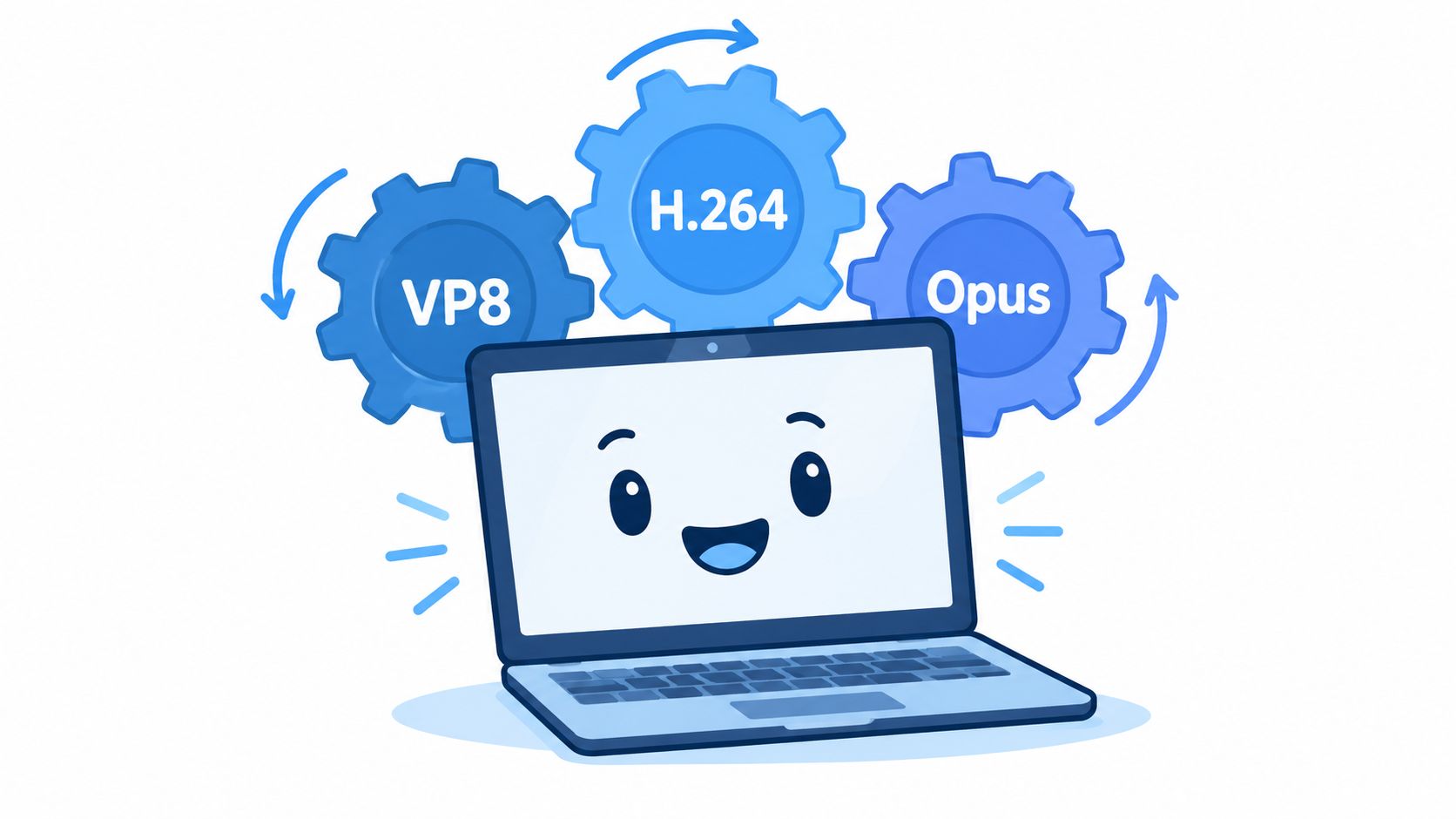
The media layer starts with codec negotiation. Compliant WebRTC browsers must support VP8 and H.264 Constrained Baseline for video, along with Opus and G.711 PCMA or PCMU for audio, according to the WebRTC codec guidance. Unless a session description specifies otherwise, the receiving browser must handle at least 20 frames per second at a minimum resolution of 320 × 240 pixels. That baseline enables interoperability, but it isn’t a target for a polished sales conversation.
Build a pre-call path
Before connecting a visitor to a rep, check the basics:
- Permission status: Explain camera and microphone access before the browser prompt appears.
- Device availability: Confirm that an input exists and that another application isn’t holding it.
- Browser conditions: Detect unsupported or restricted environments and offer another route.
- Network readiness: Test enough of the connection to choose video, audio-first, or a non-live fallback.
- User control: Let the visitor mute, disable video, switch devices, and leave without confusion.
During the call, collect WebRTC statistics such as dropped frames, round-trip time, jitter, packet loss, and outbound bitrate. These signals let the application reduce camera resolution or switch to audio-first communication when the network deteriorates. Preserving the conversation is usually more valuable than preserving a sharp image.
Treat fallback as part of the product
Mobile browsers can behave differently from desktop browsers. A corporate laptop may block camera access or restrict outbound media. An assistive technology user may need captions, keyboard navigation, clear screen-reader labels, high-contrast controls, or reduced motion.
A fallback isn’t a failure state. It’s the path that keeps a qualified visitor moving when video isn’t the right interface.
Offer chat, callback booking, asynchronous scheduling, or audio-only participation. Measure completed conversations and successful handoffs across device, browser, network, and accessibility segments, not just the number of desktop call starts.
Privacy and Security Questions Buyers Rarely Ask
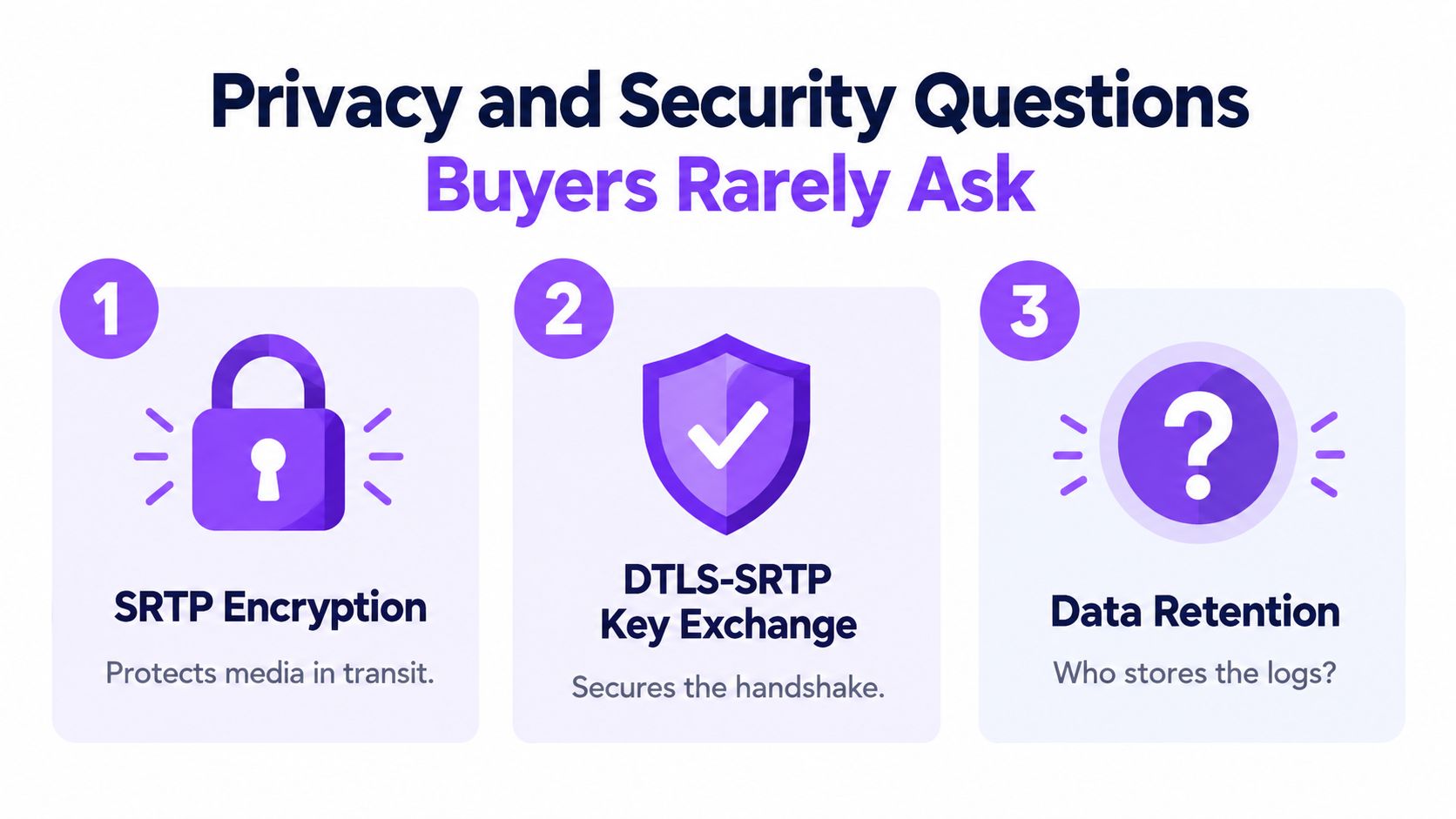
“Is WebRTC encrypted?” is an incomplete buyer question. WebRTC media is encrypted through SRTP, with key negotiation performed using DTLS-SRTP. The SRTP documentation explains the media protection layer, including AES-based suites such as AES-128-GCM and AES-256-GCM.
That protection applies to media in transit. It doesn’t automatically secure signaling, identity, recordings, CRM records, meeting tokens, or collaboration alerts. It also doesn’t prevent an authorized participant from misusing information after the call.
Ask what the network reveals
WebRTC-related traffic can expose a user’s real ISP-assigned IPv4 or IPv6 address in some browser and network configurations, including situations involving VPNs or proxies, as described in this investigation of WebRTC and IP exposure. The practical answer to “Can this call reveal my location or bypass my VPN?” depends on browser settings, STUN and TURN routing, VPN behavior, and whether media travels peer to peer or through a server.
A buyer should ask which IP-handling mode the service uses, whether TURN is available, what metadata is retained, and whether the provider can access media in a multiparty architecture. Transport encryption isn’t the same as end-to-end confidentiality when an intermediary decrypts and re-encrypts media.
Ask how access and retention work
A production deployment should enforce HTTPS for permission flows, authenticate signaling messages, limit meeting-token scope and lifetime, separate host and visitor permissions, and require explicit consent before recording or screen sharing. The team should also define retention limits, audit logs, regional data handling, and configurable recording policies.
For a broader framework covering information security and compliance, buyers should examine the complete data path rather than relying on the browser label or the phrase “encrypted call.”
Security question: Where does the conversation stop being browser media and start becoming business data?
That boundary includes recordings, transcripts, visitor identity, intent signals, CRM fields, calendar events, and notifications in tools such as Slack or Microsoft Teams. A secure implementation protects each stage, gives users meaningful consent, and makes the provider’s trust boundary easy to explain.
Captiwate connects website visitors with live video, chat, AI qualification, co-browsing, scheduling, and CRM handoffs through an embedded browser experience. If your team wants to replace form-and-wait workflows with contextual conversations while keeping routing and outcomes connected, visit Captiwate to explore the platform.